October 7, 2026 / Web Design
Best wireless gaming mouse: how to choose the right one for your setup
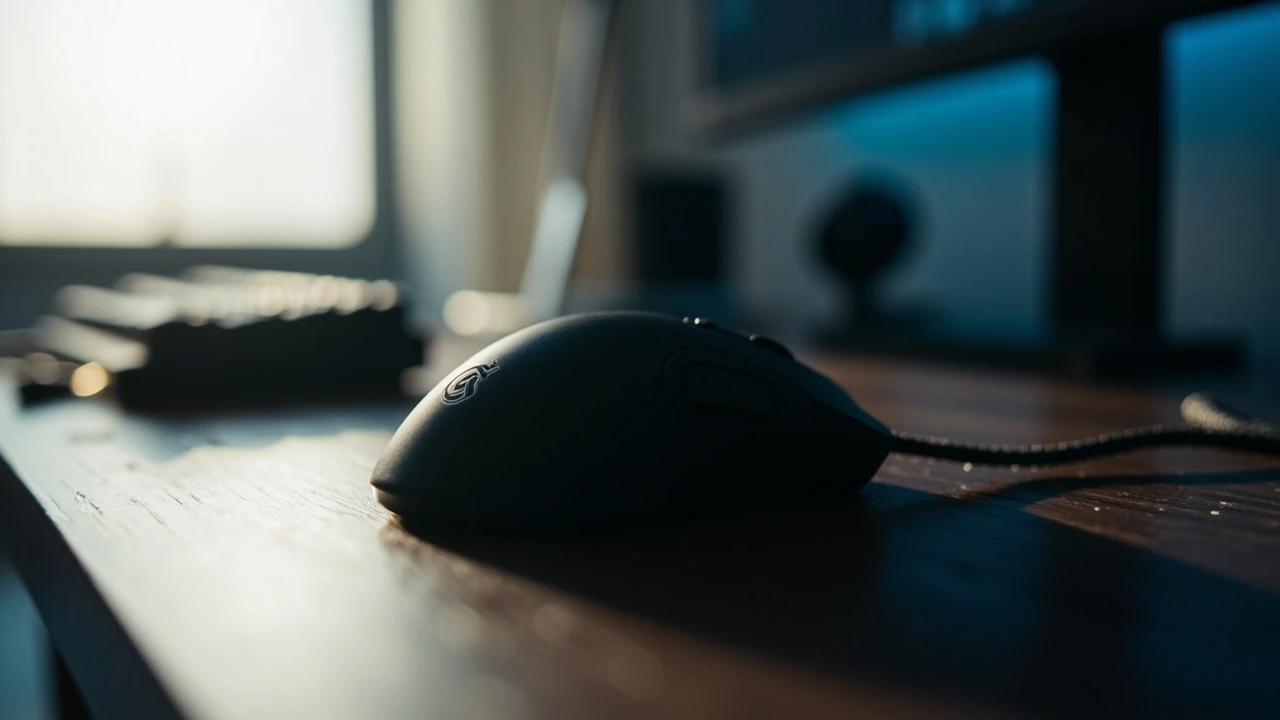
Best wireless gaming mouse: how to choose the right one for your setup
You click Buy, the mouse arrives, and three evenings later you realize the side buttons sit in the wrong place for your thumb, the battery dies mid-match, or the sensor skips during slow flicks in a tactical shooter. A wireless gaming mouse is a small piece of hardware, but it sits under your hand for thousands of hours, so the wrong shape or spec quietly costs you comfort and performance. The good news is that the differences between models are smaller than marketing implies, and the right choice is mostly about matching the mouse to your hand, your grip, and the games you play.
This guide walks through what actually matters when you choose the best wireless gaming mouse for your setup, how to read the spec sheets, and where to spend or save your budget. It is written for readers who already know they want wireless and want a clear framework rather than a single brand recommendation that may be wrong for their hands.
What “wireless gaming mouse” actually means in 2026
A wireless gaming mouse is a pointing device designed for games that uses radio frequency or Bluetooth instead of a cable to communicate with your PC. The category has matured quickly. Where early wireless mice were judged mainly on whether they felt like a wired mouse, modern designs compete on sensor accuracy, weight, polling stability, and battery life.
Most current models use one of two connection types:
- 2.4 GHz radio with a USB dongle: the dominant choice for competitive play, offering the lowest input lag and the most stable polling rate.
- Bluetooth: convenient for travel and multi-device setups, but typically higher latency and limited to lower polling rates. Bluetooth is rarely the right choice if you play fast shooters.
Some mice support both, which is useful if you want a single peripheral for a laptop, a desktop, and occasionally a tablet. Treat Bluetooth as a convenience feature, and choose the 2.4 GHz dongle for your actual gaming sessions.
Why wireless stopped being a compromise
For a long time, “wireless = laggy” was an honest description. That changed as sensor manufacturers and peripheral brands worked through three practical problems: latency, weight, and battery anxiety.
- Latency: modern 2.4 GHz receivers, combined with high-polling-rate sensors, bring total click-to-pixel delay close to wired performance for almost all players. Independent reviewers measure the gap in single-digit milliseconds.
- Weight: the move to lithium-polymer cells, hollow scroll wheels, and thin PCBs has pushed many wireless mice below 70 grams, a weight that was rare outside of specialty wired models a few years ago.
- Battery life: advertised runtimes in the 70 to 150 hour range are common at 1000 Hz polling. With a charging dock, USB-C cable, or quick-charge feature, you can usually top up during a break without swapping batteries.
For most readers looking at the best wireless gaming mouse, the old objections are no longer the deciding factor. The deciding factor is fit and feel.
How to match a mouse to your hand and grip
Sensor and switch specs are easy to compare. Shape is not, and it has the largest effect on how a mouse feels after a week of use. Three measurements matter most:
- Length: from the tip of the nose to the base of the palm rest. A mouse that is too long forces your fingers to stretch; one that is too short feels cramped.
- Width: at the widest point of the palm area. Wider mice fill the palm, narrower mice leave it arched.
- Height (hump): the tallest point of the back. A taller hump supports the palm; a flatter back suits fingertip control.
Grip style changes how those measurements feel:
| Grip style | Hand contact | Mouse shape that usually fits |
|---|---|---|
| Palm grip | Full palm rests on the back of the mouse | Longer length, taller hump, balanced width |
| Claw grip | Back of palm anchors, fingers arched | Medium length, medium hump, narrower middle |
| Fingertip grip | Only fingertips touch the mouse | Shorter length, lower hump, lighter weight |
Hand size is the next filter. A simple rule, drawn from common sizing guides, is to compare mouse length to the distance from the tip of your middle finger to the base of your palm. If the mouse is roughly 60 to 70 percent of that distance, palm grip is usually comfortable. Smaller or larger hands shift the range in either direction, which is why two players can love and hate the same popular model.
Sensor specs that genuinely matter
Marketing copy for sensors is dense, but a few values actually affect gameplay:
- DPI (dots per inch): how many counts the sensor reports per inch of movement. Modern sensors support ranges from a few hundred up to 30,000 DPI or more, but the maximum number is rarely the one you want. Most competitive players use 400 to 1600 DPI paired with an in-game sensitivity that lets them turn 180 degrees in a comfortable mouse-pad distance.
- IPS (inches per second): the maximum speed the sensor can track before it errors. Anything above 400 IPS covers flick shots and fast swipes. If a sensor does not publish IPS, treat it as a flag.
- Acceleration tolerance: how many g’s the sensor can handle during sudden direction changes. 40 g is a common competitive-grade number.
- Polling rate: how often the mouse reports its position to the PC, measured in hertz. 1000 Hz (1 ms) is the modern default. 4000 Hz and 8000 Hz mice exist, but the benefit depends on your display, your game, and whether your PC can keep up with the higher CPU overhead.
For the best wireless gaming mouse, a top-tier sensor is now table stakes. The question is whether you need extras such as a tilt-sensitive scroll, a hardware DPI button, or saved onboard profiles. Onboard memory is genuinely useful if you take the mouse to a second PC, since it lets you carry your sensitivity and button layout with you.
Weight: lighter is not always better
Light mice are popular because they reduce hand fatigue and make micro-adjustments easier. Heavier mice can feel more controlled during long, steady tracking, especially in sniper or MMO situations. There is no universal “right” weight, only a range that suits your style.
| Weight range | Typical feel | Often chosen for |
|---|---|---|
| Under 60 g | Very nimble, easy to lift | Fingertip and claw grip, fast-paced shooters |
| 60 to 80 g | Balanced | All-round play, palm and claw grip |
| 80 to 110 g | Stable, planted | Tracking-heavy games, larger hands, palm grip |
| Over 110 g | Heavy, deliberate | Specific MMO or productivity setups, often with weight tuning |
Some mice ship with small weights you can add or remove. That option is worth having if you are between sizes or you are not sure whether you prefer light or planted. If you have never tried a light mouse, expect a short adjustment period before the control feels natural.
Battery, charging, and the daily routine
Battery life determines how often you think about the mouse. There are three common implementations:
- Built-in rechargeable cell: the most common today. Charge via USB-C, sometimes through the mouse pad, sometimes through a magnetic dock.
- Replaceable AA or AAA batteries: a favorite for travel because you can swap a dead cell in seconds. The trade-off is higher weight and a slightly higher center of gravity.
- Hybrid: the mouse runs on a cell but can also work over a wired USB cable while charging.
A practical rule: if you game more than four hours a day, look for a mouse rated above 70 hours at 1000 Hz, and check that you can use it while charging. If you play casually, the charging cable becomes a weekly chore rather than a daily one, and almost any modern wireless mouse will work.
Buttons, switches, and the things you actually press
Most wireless gaming mice have at least five buttons: left, right, middle, and two on the left side. That is enough for shooters and most adventure games. For MMO, MOBA, or heavy productivity use, more buttons are useful, and you should think about placement before you buy.
- Side buttons: ideally reach your thumb without forcing a shift in grip. If they are too far back, you cannot press them in a fight. Too far forward, and you press them by accident.
- Scroll wheel click: useful as a third thumb button. Some mice let you tilt the wheel left and right, which adds two more inputs.
- DPI or sniper button: a temporary DPI drop that helps with long-range shots. Useful in tactical shooters, useless in MOBAs.
- Switches: optical switches have become common because they avoid the double-click problem of older mechanical switches. The switch rating, in millions of clicks, is a rough durability hint, not a guarantee.
Software also matters. A good configuration app lets you set per-game profiles, record macros, and adjust lift-off distance. If you do not want to install software, look for onboard memory and a web-based configurator that exports a settings file.
Connectivity and polling: where wireless can still surprise you
Even with the same sensor, two wireless mice can feel different if their receivers and firmware are weak. A few things to check before you decide on the best wireless gaming mouse for your desk:
- Receiver location: if the dongle sits behind your monitor, far from the mouse, you may see the occasional drop. A short USB extension cable placed on the desk is a common fix.
- Polling consistency: independent reviewers often show graphs of polling intervals. Look for a flat line at 1000 Hz. Spikes suggest wireless interference or firmware issues.
- Dongle storage: mice with a slot inside the body make the dongle harder to lose on the way to a LAN party.
- Multi-device support: if you want to use one mouse on a desktop and a laptop, a second channel or a Bluetooth mode is a quiet time-saver.
As a rule, place the receiver within a meter of the mouse, away from USB 3.0 ports that emit broadband noise, and avoid running it next to a charging phone or a metal hub.
A practical decision framework
Rather than chase brand names, walk through these checks in order. The first one that is hard to satisfy is usually the right one to fix.
- Measure your hand. Length from middle-finger tip to palm base, width across the knuckles, and your usual grip style.
- Decide your weight target. Try a mouse in a store if possible, or borrow a friend’s to feel a 60 g versus a 90 g mouse.
- Pick a shape family. Use the table above. If you are between claw and palm, choose the shape with a slightly taller hump, since it is easier to under-grip than over-grip.
- Set a sensor floor. At minimum, look for a published IPS of 400 and a polling rate of 1000 Hz, with hardware that lets you lower the lift-off distance.
- Check the battery story. Confirm you can play while charging and that the cable is long enough to reach a comfortable spot.
- Pick the right number of buttons. Match the button count to the games you actually play, not the games you might play someday.
Once those six points are settled, the brand choice usually narrows to two or three candidates at your budget, and the rest comes down to color, software preference, and availability.
Common mistakes when buying a wireless gaming mouse
Most unhappy buyers run into the same traps. Skipping them will save you a return.
- Buying on hype: a popular streamer may use a small, light mouse that is wrong for your 22 cm palm grip. Try the shape, not the influencer.
- Trusting DPI numbers: a 30,000 DPI sensor does not aim better than a 16,000 DPI sensor. Your in-game sensitivity, mouse pad, and arm movement decide that.
- Ignoring the mouse pad: a wireless mouse still needs a consistent surface. A frayed cloth pad or a glossy desk can cause tracking noise that looks like a sensor problem.
- Forgetting the cable: the charging cable is part of the product. A stiff, short cable makes the mouse unusable while it is plugged in.
- Skipping the software: if you cannot stand the configuration app, the mouse is a poor fit, no matter how good the sensor is.
Working through this list before checkout is the cheapest way to make sure the best wireless gaming mouse you pick is also the right one for you.
How wireless mice fit into a larger desk and brand setup
A wireless gaming mouse rarely lives alone. It shares the desk with a keyboard, a mouse pad, a monitor, and often a charging dock that uses the same visual language. If you care about how the setup looks on stream or in client calls, the color, finish, and weight of the mouse should match the rest of the kit. That is the same logic designers use when they build a visual identity for a product line: every detail should feel intentional rather than accidental. You can read more about that thinking in Visual identity: what it is, what it includes, and how to build one, which explains how small, repeated details like finish, weight, and silhouette add up to a coherent feel.
The same idea applies to how a mouse is presented on a product page. Clear photos, honest spec tables, and a short list of who the product is for make it easier to choose. If you are interested in the broader design of a product site, the article on website strategy: how to plan a site that actually performs walks through how layout and information architecture support real decisions like this one.
Price tiers and what changes as you spend more
Wireless gaming mice cluster in three price ranges. Each step adds a specific kind of value, not just a different paint job.
| Price tier | Typical changes from the tier below | Who it suits |
|---|---|---|
| Entry (under $60) | Basic sensor, plastic shell, software with fewer options, shorter battery life | Casual players, first wireless mouse, tight budget |
| Mid ($60 to $120) | Lighter shell, better sensor, longer battery, onboard memory, more reliable receiver | Most players who game several times a week |
| Premium (over $120) | Lowest weight, optical switches, refined shape, charging dock, 4000 Hz or 8000 Hz polling | Competitive players, enthusiasts who care about every gram |
The mid tier is the best value for most readers, because the sensor and battery are already good enough for daily play. The premium tier makes sense when you know what the extra grams or the extra polling rate will give you, not because a brand says it is the “pro” version.
Quick checklist before you buy
Use this list the next time you compare two mice side by side. If a candidate cannot answer all of these clearly, keep looking.
- Does the length and hump match your hand and grip?
- Is the weight in your preferred range, with or without the included weights?
- Does the sensor publish IPS and acceleration numbers, not only DPI?
- Can you game while the mouse is charging?
- Are the side buttons reachable without shifting your grip?
- Does the software let you save profiles to the mouse itself?
- Is the receiver a 2.4 GHz dongle, with Bluetooth only as a backup?
If the answer is yes to all of them, you are very close to the best wireless gaming mouse for your setup, regardless of brand.
Frequently asked questions
Is a wireless gaming mouse really as fast as a wired one?
For most players, yes. Modern 2.4 GHz wireless mice report their position with a delay in the low single-digit milliseconds, which is hard to feel in real play. Top competitive players may still prefer a wired mouse for absolute consistency, but the gap is small and shrinking each year.
What DPI should I use for gaming?
DPI is a personal setting, not a performance number. Most competitive players land between 400 and 1600 DPI, combined with an in-game sensitivity that lets them turn 180 degrees within a comfortable sweep of the mouse pad. The right value is the one that feels precise without straining your wrist.
How important is mouse weight?
Weight affects fatigue and control. Lighter mice are easier to lift and to micro-adjust, while heavier mice can feel more planted for steady tracking. If you are not sure, try a 70 to 80 g mouse first, then move lighter or heavier from there.
Do I need 4000 Hz or 8000 Hz polling?
Only if your display runs above 240 Hz and you play at a level where the difference is meaningful. Higher polling rates add CPU overhead, and the benefit on a 144 Hz monitor is small. For most readers, 1000 Hz is the right default.
Should I choose Bluetooth or a 2.4 GHz dongle?
For gaming, the 2.4 GHz dongle is the better choice because it offers lower latency and higher polling rates. Bluetooth is useful for travel, tablets, and quick connections to a laptop, but it is rarely the right primary connection for competitive games.
How long should the battery last?
Aim for at least 50 to 70 hours of play time at 1000 Hz polling. If you game heavily, look for a mouse that runs while charging over USB-C. Replaceable batteries are a fair alternative if you do not mind carrying a spare AA.
Are optical switches better than mechanical switches?
Optical switches tend to last longer and avoid the double-click problem that some older mechanical switches develop. They feel similar to most players, so the choice usually comes down to durability and price rather than feel.
Can I use one wireless mouse on two computers?
Yes, if the mouse supports a second channel, a second dongle, or a Bluetooth mode. Some models also let you switch between paired receivers with a button on the bottom. Onboard memory helps because your sensitivity and button layout travel with the mouse.
Do I need a special mouse pad for a wireless gaming mouse?
You need a consistent surface. Most modern sensors work on cloth, hard pads, and even wood desks, but a frayed pad or a glossy surface can cause tracking noise. A clean, flat cloth or hard pad in the 36 to 42 cm wide range gives you room to move without lifting.
Is it worth paying more for a charging dock?
A dock is convenient but not essential. If the mouse charges over USB-C and you can use it while plugged in, a dock is mostly a desk-aesthetic choice. If you like the cleaner look and you already have free USB ports, the dock is a small but pleasant upgrade.