September 26, 2026 / Brand Strategy
Alienware 16 Aurora gaming laptop: a buyer-focused review
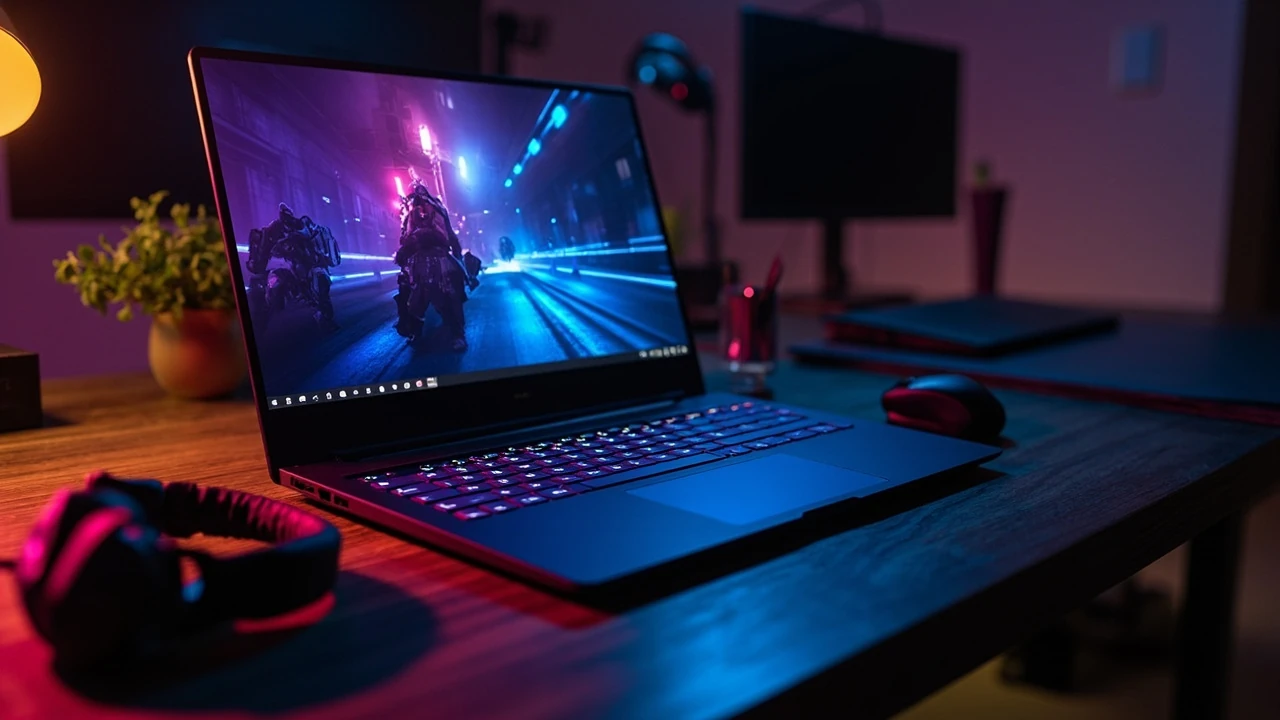
A buyer comparing the Alienware 16 Aurora gaming laptop usually wants the same thing: a clear answer to whether the machine is worth its price, what kind of gamer it actually fits, and how it stacks up against the m16 and x16 models that sit above and below it in the Alienware lineup. This review focuses on those decisions rather than chasing benchmark leaderboards.
The 16 Aurora was positioned by Dell as a more accessible entry into the Alienware family, aimed at players who want a larger 16-inch screen and modern hardware without paying the premium that the flagship x-series commands. That positioning shapes almost every decision the engineering team made, from the chassis material to the GPU ceiling.
Alienware 16 Aurora gaming laptop: what it is and where it fits
The Alienware 16 Aurora gaming laptop is the 2024-and-onward replacement for the older m16 R2 tier in Dell’s gaming line. It sits between the entry-level 16 Plus and the flagship x16, sharing the same general silhouette and thermal design language but using simpler materials and a more conservative component ceiling.
Dell markets it as a “sweet spot” machine, but the more honest way to describe it is as a mainstream 16-inch gaming laptop with gaming-grade components, a neutral design, and configurable specs that let buyers trade up to higher-tier GPUs without jumping to the x16’s price band.
Where it actually sits in the market is between thin-and-light competitors such as the Lenovo Legion Pro 5 16 and ASUS ROG Strix 16, and heavier performance laptops like the MSI Raider or ASUS ROG Strix SCAR. It is closer to the former in portability, with thermal headroom that lands between the two camps.
Who the 16 Aurora is designed for
The hardware choices inside the 16 Aurora make more sense once you understand the target buyer. Dell is clearly aiming at:
- Mainstream gamers who play AAA titles at 1440p rather than chasing 4K at maximum settings.
- Students and young professionals who want a single machine for coursework, creative work, and gaming.
- Buyers stepping up from a 15-inch budget laptop and willing to spend on better build quality without going into flagship territory.
- Players who value a larger screen, comfortable keyboard, and quiet operation over absolute portability.
Who should look elsewhere
Not every gamer should default to the Aurora. Players who want the thinnest 16-inch chassis on the market, the highest possible frame rates without thermal throttling, or premium materials like magnesium-alloy lids and per-key RGB should compare the Alienware x16 R2 or the Razer Blade 16 before committing. Conversely, buyers who only play esports titles at 1080p will leave performance on the table and could save money with a thinner 14-inch option.
Design, build, and day-to-day handling
The 16 Aurora uses a more restrained design than the rest of the current Alienware range. The “Aurora” name refers to a softer visual language: less aggressive rear venting, no RGB light bar across the back, and a more conventional lid with a simple Alienware wordmark rather than the silhouette head logo used on the x-series.
Build quality is a step up from Dell’s budget G-series, but it is not in the same class as the x16. The lid and keyboard deck use a combination of aluminum and high-quality plastic, which keeps weight manageable while still feeling solid. There is a small amount of flex in the keyboard deck under heavy typing pressure, and the lid can be twisted slightly, but neither issue is unusual for a 16-inch performance laptop in this price range.
Weight lands at roughly 2.7 kg depending on configuration, and thickness is in the 23-25 mm range. That is heavier than an ultrabook but noticeably lighter than a 17-inch replacement, which is the realistic trade-off for a 16-inch screen with dedicated GPU cooling.
Ports and connectivity
The port layout is generous and biased toward the back of the chassis, which keeps cables out of the way during gameplay. The exact set varies slightly by configuration, but a typical 16 Aurora includes:
- Two USB-C ports, one of which supports Thunderbolt 4 on Intel-based models.
- Two USB-A 3.2 Gen 1 ports for older peripherals and external storage.
- HDMI 2.1 output for direct connection to a 4K monitor or living-room display.
- A full-size SD card reader, which is genuinely useful for content creators.
- An Ethernet jack for low-latency online play.
- A 3.5 mm combo audio jack.
Wireless connectivity is Wi-Fi 7 on the latest Intel configurations, with Bluetooth 5.4. That is forward-looking enough that the laptop will not feel outdated for several years, which matters because most buyers keep a gaming laptop for at least four to five years.
Display options and what they actually mean for gaming
The 16 Aurora is offered with a small number of 16-inch panel choices, and the panel you pick has a bigger impact on day-to-day experience than most buyers expect. GPU power matters, but the panel sets the ceiling on what you can actually see.
| Panel option | Resolution | Refresh rate | Best for |
|---|---|---|---|
| Base IPS | 2560 x 1600 (QHD+) | 240 Hz | Most gamers, balanced price and performance |
| High-brightness IPS | 2560 x 1600 | 240 Hz | Bright rooms and outdoor-adjacent setups |
| Mini-LED (where offered) | 2560 x 1600 | 240 Hz | HDR content and cinematic single-player games |
The base 240 Hz QHD+ IPS panel is the most common configuration and the most sensible choice for the majority of buyers. 1440p is the natural resolution for an RTX 4070 or 5070-class GPU, and 240 Hz is fast enough to feel smooth in both competitive shooters and action games without driving the GPU into a power-draw corner.
Color coverage on the base panel is around 100 percent of sRGB with moderate DCI-P3 coverage, which is fine for gaming and adequate for content work that does not require professional color accuracy. The high-brightness option pushes peak brightness into the 500-nit range, which is genuinely useful for daytime use near a window but is not strictly required for indoor gaming.
Performance: CPU, GPU, and what real gameplay looks like
Performance is where most reviews get carried away with numbers, so this section focuses on what the Alienware 16 Aurora actually delivers in the games most buyers play. Specific frame rates change with drivers, BIOS updates, and game patches, so the focus here is on general behavior, thermal sustainability, and the relationship between CPU and GPU choices.
CPU options
The 16 Aurora is sold with current-generation Intel Core Ultra HX processors in the higher configurations and standard H-series chips in more affordable builds. The HX parts are the better choice for sustained workloads because they have more cores and higher long-term power limits, which matters for video editing, compilation, and simulation games such as Cities: Skylines 2 or Stellaris late-game empires.
For pure gaming, the gap between an HX and a strong H-series chip is smaller than the marketing materials suggest. Modern GPUs are the bottleneck in most AAA titles, and an 8-core H chip is rarely the limiting factor at 1440p. Buyers who do serious creative work should pick the HX part; buyers who only game can save money with the H chip and put it toward a better GPU instead.
GPU options and frame-rate behavior
The GPU tier is the single biggest performance lever on the 16 Aurora. Each step up roughly doubles the cost-to-performance gain in different ways, and not every step is worth it for every buyer.
| GPU tier | Typical 1440p AAA | Typical 1440p esports | Best fit |
|---|---|---|---|
| RTX 4060 / equivalent mid-range | 60-80 fps at high settings | 200+ fps | Casual and esports players on a budget |
| RTX 4070 / equivalent upper mid | 80-110 fps at high settings | 240 fps cap | Most mainstream gamers |
| RTX 5070 / equivalent high-end | 110-140 fps at high settings | 240 fps cap | Players targeting 240 Hz monitors |
| RTX 5070 Ti / equivalent flagship | 130-160 fps at high settings | 240 fps cap | Content creators and high-refresh owners |
Frame rates in the table are realistic ranges for current AAA titles with ray tracing set to medium and DLSS or FSR in balanced mode. Raw rasterization numbers without upscaling will sit lower. Esports titles such as Valorant, Counter-Strike 2, and League of Legends will push well past 240 fps on any of these configurations, which is why a 240 Hz panel is more useful than a higher-resolution 4K screen for many buyers.
Ray tracing and DLSS
Alienware machines ship with NVIDIA cards, which means DLSS is available. Frame Generation in particular makes a noticeable difference at 1440p on the 4070 and 5070 tiers, often turning a 70 fps native experience into a 110-plus fps experience with the visual cost that is small enough to be hard to spot in motion. Ray tracing should be treated as a feature to be enabled selectively, not as a default. The 4060 and 5070 tiers can run ray tracing, but the cost is real, and turning it on without DLSS support will produce disappointing numbers.
Thermals, noise, and sustained performance
A 16-inch chassis with a high-TDP GPU will get warm. The question is not whether the Alienware 16 Aurora gaming laptop gets hot, but how it manages heat, how loud it gets under load, and whether sustained performance matches the peak numbers quoted in marketing material.
Under extended gaming sessions, the keyboard deck stays warm rather than hot, with the WASD region noticeably cooler than the center where the CPU and GPU share heat pipes. The bottom panel gets hotter, which is normal for a machine that exhausts heat downward and backward. Lapping on a hard surface rather than a bed or carpet is genuinely important; the rubber feet on the bottom of the laptop are the entire thermal interface, and blocking them will trigger thermal throttling within minutes.
Fan noise and profiles
Alienware Command Center offers several performance profiles, and the differences between them are large enough to matter. In the default balanced profile, the fans are audible under gaming load but not intrusive, and most buyers will be comfortable using the laptop in a shared room without headphones. The high-performance profile ramps the fans up significantly and is only worth using for benchmarks or when the laptop is plugged in and on a cooling pad.
A quiet mode exists for office work and browsing, and it is genuinely quiet. Most of the time, the 16 Aurora sits in this mode when not gaming, which is one of its better qualities: the machine does not draw attention to itself when it is not being used hard.
Sustained performance
Because the chassis is a mid-thickness 16-inch design rather than a thin-and-light, the 16 Aurora can sustain close to its peak performance for longer than slimmer competitors. Frame rates in Cyberpunk 2077 and similar demanding titles do drop during the first 10-15 minutes of play as the chassis heats up, but the drop is usually in the 5-10 percent range, which is competitive for the category. The flagship x16 holds its peak longer, but it also costs considerably more and runs louder in the process.
Battery life and real-world mobility
No 16-inch gaming laptop has genuinely long battery life, and the 16 Aurora is no exception. The battery is large for the category, usually around 90 Wh, which is the practical upper limit for airline-compliant laptops. Real-world results depend heavily on what the user is doing.
| Workload | Expected battery life | Notes |
|---|---|---|
| Web browsing and office work | 6-8 hours | Balanced profile, 50 percent brightness |
| Video playback (local file) | 5-7 hours | Lower brightness, no GPU activity |
| Light creative work | 3-5 hours | Photoshop, Lightroom, light Premiere work |
| Gaming on battery | 1-1.5 hours | Not recommended; performance is also reduced |
Two practical points matter here. First, gaming on battery power is rarely a good idea on any gaming laptop because the GPU is power-throttled immediately, which produces frame rates that look far worse than the same game on the same machine plugged in. Second, USB-C charging is supported at lower wattage, which means the 16 Aurora can be topped up with a 100 W USB-C charger when traveling light, but the laptop will not run at full performance under USB-C power.
Keyboard, trackpad, and everyday usability
Most 16-inch gaming laptops treat the keyboard and trackpad as secondary features, but the 16 Aurora’s input devices are good enough to use all day for non-gaming work. The keyboard has a full layout including a number pad, which splits opinion. Players who want arrow keys centered on the laptop will dislike the offset caused by the number pad; productivity users will appreciate the extra keys for spreadsheets and shortcuts.
Key travel is around 1.8 mm, which is generous for a laptop, and the actuation is firm enough that accidental presses are rare. The optional per-key RGB lighting on higher configurations is bright enough to read in daylight and has the usual effects through Alienware Command Center, but most buyers will use a static color or breathing effect rather than the more elaborate options.
The trackpad is a conventional mechanical click design rather than the haptic touchpads that have started appearing in premium machines. It is large, accurate, and the click is consistent across the surface. It is not a flagship trackpad, but it is a clear step up from the older G-series trackpads that Alienware used to ship.
Software, bloatware, and the Alienware Command Center
Alienware Command Center is the central hub for performance profiles, lighting, audio, and thermal settings. It works, but it has historically been slower and less polished than the software shipped with competitors from ASUS, Lenovo, and Razer. The 16 Aurora is no exception, and the Command Center is occasionally the source of unexplained fan behavior or lighting bugs.
Dell has reduced pre-installed bloatware over the last few generations, but the 16 Aurora still ships with several pieces of software that most users will uninstall: a McAfee trial, a Dropbox promotion, and a small number of Dell utilities that overlap with Command Center. None of these are deal-breakers, but they do lengthen the setup process and slightly slow the first boot.
How the 16 Aurora compares to its siblings
Alienware’s 16-inch lineup is denser than it used to be, and a buyer who has not compared the models in person can easily overspend. The two most relevant comparisons are the 16 Plus and the x16 R2.
| Model | Position | Chassis | Typical GPU ceiling | Price band |
|---|---|---|---|---|
| Alienware 16 Plus | Entry | Plastic-dominant | Mid-range | Lower |
| Alienware 16 Aurora | Mainstream | Aluminum/polycarbonate | Upper mid to high-end | Middle |
| Alienware x16 R2 | Premium | Magnesium/aluminum | High-end to flagship | Higher |
The 16 Plus is the right choice for buyers on a strict budget who do not need higher-tier GPUs. The x16 R2 is the right choice for buyers who want a thinner chassis, the best possible build quality, and do not mind paying for it. The 16 Aurora is the right choice for everyone in between, which is most mainstream buyers, and the model the rest of this article is built around.
Configuration advice: what to spend on and what to skip
Configuration decisions have a larger impact on long-term satisfaction than the choice of model itself. The wrong combination of CPU, GPU, RAM, and storage can make a good laptop feel slow in two years; the right combination extends its useful life by a year or more.
- Spend on the GPU before the CPU. Most modern games are GPU-bound at 1440p, and an extra GPU tier usually adds 20-30 percent more frame rate, while an extra CPU tier adds 5-10 percent.
- Buy 32 GB of RAM if the budget allows. Current games are starting to use more than 16 GB, and creative applications already do. 32 GB is the new comfortable baseline for a 16-inch performance laptop.
- Skip the smallest SSD if possible. A 512 GB drive fills up quickly with modern games, several of which exceed 100 GB each. A 1 TB drive is the practical minimum for a primary gaming machine.
- Pick the 240 Hz QHD+ panel over higher refresh options. The 16 Aurora’s GPU choices rarely push past 240 fps in AAA games, and 240 Hz is the sweet spot for both competitive and casual play.
- Avoid factory undervolting or overclocking services. These add cost and rarely produce stable gains; thermal tuning is best left to a careful manual pass once the laptop is in regular use.
Common buyer mistakes to avoid
A few decisions come up repeatedly in buyer questions, and getting them right saves both money and frustration.
- Buying a higher-refresh display than the chosen GPU can drive. A 240 Hz panel on a lower-tier GPU looks worse than a 165 Hz panel driven to its full potential.
- Skimping on RAM to afford a higher GPU. The reverse is usually the better trade; 16 GB constrains even mid-range GPUs in modern titles.
- Assuming the loudest fan profile is the fastest. Most of the time the performance profile is the right choice, and the “extreme” profile adds noise without proportional gain.
- Ignoring the charger wattage. A underpowered third-party charger will throttle the laptop during gaming and damage the battery over time.
- Forgetting the carrying case. A 2.7 kg machine with a 16-inch footprint needs a properly sized bag, and a tight sleeve will stress the chassis corners.
Who should buy the Alienware 16 Aurora gaming laptop
The clearest case for the 16 Aurora is a buyer who wants a single machine for both work and play, plays a mix of AAA and competitive titles, and does not need the absolute thinnest chassis or the absolute highest frame rates. For that buyer, the 16 Aurora is a sensible default: well-built, well-cooled, with enough configuration headroom to last four to five years.
The case against the 16 Aurora is also specific. If the buyer is purely a competitive esports player, a thinner 14-inch or 15-inch machine will be more comfortable to use at long practice sessions. If the buyer is a creative professional, the x16 R2 or a dedicated workstation-class laptop will serve better. If the buyer already owns a good desktop and wants a thin travel machine, the 16 Aurora is overkill.
Limitations and things the marketing does not mention
Every review owes the reader the parts that the marketing page skips.
- Webcam quality is adequate for video calls but unremarkable. It is a 1080p sensor, which is the right resolution, but in low light it produces a soft image.
- Speakers are functional but not special. Most buyers will use headphones for gaming, which makes the speaker limitation less important than it sounds.
- The keyboard layout is fixed, and there is no per-key RGB on the base configuration. Buyers who want full per-key customization have to upgrade.
- Repairability is limited. The SSD and Wi-Fi card are user-replaceable, but the battery and mainboard are not designed for user servicing.
- Alienware Command Center occasionally conflicts with Windows power profiles, which can cause the laptop to ignore user-selected performance modes. Keeping both settings in sync is a small but ongoing task.
Practical setup checklist after unboxing
The first hour with a new gaming laptop decides whether it will feel fast for the next four years. A short checklist covers the steps that matter most.
- Run Windows Update until the system reports it is up to date, then install the latest NVIDIA and Intel drivers from their respective sites rather than relying on the OEM versions.
- Update the BIOS through Alienware Update or the Dell support site. BIOS updates often improve thermals and fan behavior, and skipping them can leave performance on the table.
- Open Alienware Command Center and set a sensible default performance profile. Most buyers will use “Balanced” for daily work and “Performance” for gaming.
- Uninstall bloatware, especially any security trials, and disable startup items that do not need to launch with Windows.
- Move games and large applications to the secondary SSD if the configuration includes one. This keeps the boot drive responsive.
- Calibrate the display color profile. The default profile is acceptable, but a short calibration with built-in Windows tools improves color accuracy noticeably.
- Set a charging limit if the laptop supports it. Keeping the battery between 60 and 80 percent when plugged in extends its long-term health.
Long-term ownership expectations
A well-configured Alienware 16 Aurora gaming laptop should remain a strong performer for four to five years for most buyers. After that, the main reason to upgrade is usually the GPU falling behind new releases, not the CPU or display. Battery capacity will drop to around 80 percent of original capacity in that period, which is normal, and a battery replacement is the only significant service the average user will need.
Driver support for the GPU will continue well past the typical ownership window, and the chassis itself is durable enough that the laptop will physically outlast its performance. The most common reason a 16-inch gaming laptop ends up replaced early is the hinge, and the 16 Aurora’s hinge is robust enough that this is unlikely to be a concern for the first owner.
Frequently asked questions
Is the Alienware 16 Aurora gaming laptop good for AAA games at 1440p?
Yes. With an upper mid-range GPU such as the RTX 4070 or equivalent, the 16 Aurora runs most current AAA games at well over 60 fps at high settings in 1440p, and frame rates climb into the 100-plus range in titles that support DLSS or FSR. The 240 Hz panel means smoother motion even at frame rates that fall short of the maximum refresh.
How loud is the Alienware 16 Aurora under load?
In the default balanced profile, the fans are audible but not intrusive during gaming. Switching to the high-performance profile raises the noise level significantly and is best reserved for desk use with headphones. The quiet profile is genuinely quiet and is fine for office and browsing work.
Can the Alienware 16 Aurora be used for work and school?
Yes. The chassis, keyboard, and trackpad are good enough for long typing sessions, and battery life in light work is competitive for a 16-inch performance laptop. The 16:10 display also gives a useful amount of vertical space for documents and spreadsheets.
Should I buy the 16 Aurora or the x16 R2?
Buy the 16 Aurora if you want a mainstream 16-inch machine with good performance and a reasonable price. Buy the x16 R2 if you want a thinner chassis, premium materials, and the highest possible GPU tier, and you are willing to pay for it. The two laptops share the same general design language, so the real question is how much you value portability and build quality over price.
Does the Alienware 16 Aurora support Thunderbolt?
On Intel-based configurations, at least one of the USB-C ports supports Thunderbolt 4, which is useful for high-speed external storage, docking stations, and external GPU enclosures. Buyers who plan to use a single-cable dock setup should confirm the port layout on the exact configuration they are considering before purchase.
How much RAM does the Alienware 16 Aurora actually need?
16 GB is the minimum for current games, and 32 GB is the more comfortable choice if the budget allows. Creative applications such as video editing and 3D work benefit directly from 32 GB or more. RAM is usually user-upgradable on the 16 Aurora, so buyers can start with 16 GB and add later if needed.
Is the Alienware 16 Aurora good for content creators?
For video editing, photo work, and 3D modeling at a hobbyist or prosumer level, the 16 Aurora is a strong fit, especially with the HX-class CPU and 32 GB of RAM. For professional color work, the panel color accuracy is acceptable but not at workstation levels, and a calibrated external monitor is recommended.
What is the warranty situation for the Alienware 16 Aurora?
Dell ships the 16 Aurora with a standard one-year warranty, which can be extended at purchase. Buyers who keep a laptop for more than two years usually benefit from extending the warranty, particularly for accidental damage coverage. Check the specific terms on the Dell site at the time of purchase, as warranty terms change.
Does the Alienware 16 Aurora overheat during long sessions?
The chassis gets warm during extended gaming, but the keyboard deck stays within comfortable bounds and the laptop does not throttle aggressively in most configurations. Using the laptop on a hard surface and avoiding blocked vents is the most important factor; a cooling pad is optional but useful in hot rooms.
Is the Alienware 16 Aurora worth the price compared to non-Alienware options?
It depends on what the buyer values. The 16 Aurora is more expensive than some Lenovo Legion and ASUS TUF models with similar components, but it offers better build quality, a more refined thermal design, and access to Dell’s support network. Buyers who prioritize raw value can find cheaper options; buyers who want a more polished experience will find the 16 Aurora worth the premium.