August 18, 2026 / Web Design
Samsung Odyssey G3 FHD gaming monitor: a practical buyer’s guide
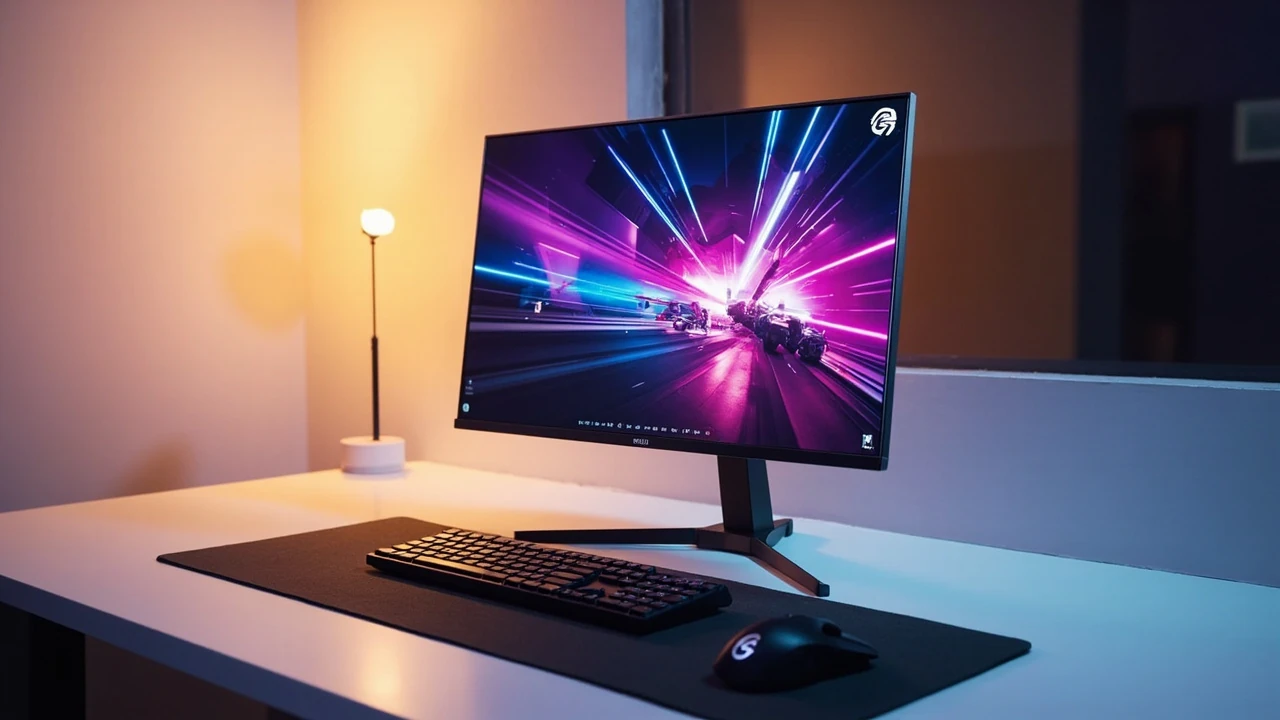
Samsung Odyssey G3 FHD gaming monitor: what it actually delivers
A 24-inch screen with a 1080p panel, a 165 Hz refresh rate, and a stand that lets you tilt, swivel, pivot, and adjust the height sits at the front of many shortlists because it solves a specific problem: tight desks, tight budgets, and competitive games that punish slow pixels. The Samsung Odyssey G3 FHD gaming monitor is built around that exact combination, and most buyers already know what they want before they read a single review. The interesting question is whether the panel, the stand, and the on-screen options match the way you actually play.
This guide walks through the panel type, the real-world motion performance, the stand and mounting options, the ports and cable layout, and the things you can change in the on-screen display. It also compares the screen against the most common alternatives in the same price range so you can decide whether the Odyssey G3 belongs on your shortlist or whether a slightly different monitor would suit you better.
What the panel is, and why FHD still makes sense in 2026
Full HD, or 1920 x 1080, is often treated as a budget resolution, but on a 24-inch screen it produces a pixel density of about 92 pixels per inch. That is close to the density that most people find comfortable for both desktop work and gaming, and it is one of the reasons 1080p remains a sensible choice for screens at this size. The Samsung Odyssey G3 FHD gaming monitor uses a Vertical Alignment panel, which Samsung lists in its F24G3 series documentation as a VA-type LCD with a static contrast ratio that sits well above the typical IPS figure in the same bracket.
VA panels handle dark scenes better than IPS panels, so games with strong shadow detail, including first-person shooters, horror, and many role-playing games, look more layered. The trade-off is viewing angle, which is slightly narrower than IPS. On a single-user desk that rarely matters, because you sit directly in front of the screen, but it is worth knowing if you sometimes stream to a TV next to the monitor or share a screen with a second player.
For competitive players, 1080p keeps the frame rate honest. A mid-range graphics card that struggles to push 1440p at high refresh rates will often deliver a smooth frame rate at 1080p, which matters more than pixel count for many fast-paced games.
Refresh rate, response time, and how they feel in real games
The Samsung Odyssey G3 FHD gaming monitor supports up to 165 Hz through its DisplayPort input, with the HDMI port capped at 144 Hz. That gap is small, but it does mean that if you want the full refresh ceiling, DisplayPort is the better choice for desktop PC gaming. The monitor also supports AMD FreeSync Premium, which synchronises the panel’s refresh with the frame output of a compatible graphics card and removes the screen tearing that appears when the two drift apart.
Response time is the other half of the motion story. Samsung rates the Odyssey G3 with a 1 ms MPRT figure, which refers to moving-picture response time rather than the traditional grey-to-grey measurement. MPRT describes how long a frame is visible on the screen and is closely tied to backlight strobing, while grey-to-grey measures pixel transition speed. In practical play, the panel feels responsive in shooters and racing games, though the darkest transitions on VA panels can show a small amount of smearing, which is typical of the technology and not a fault.
For most players, the combination of 165 Hz, FreeSync Premium, and a low response time makes the Samsung Odyssey G3 FHD gaming monitor feel noticeably smoother than a 60 Hz office panel. The upgrade is most obvious when you move a window across the desktop quickly or when you track a moving target in a shooter.
Stand, ergonomics, and desk footprint
One of the strongest arguments for the Odyssey G3 over a cheaper gaming panel is the stand. The supplied stand offers full ergonomic adjustment:
- Height adjustment of around 130 mm, enough to raise the top of the screen close to eye level for a tall user.
- Swivel of roughly 30 degrees to each side, useful when you push the screen out of the way to reach a desktop tower.
- Pivot for a 90-degree portrait rotation, which is helpful for long chat windows, code, or a vertical reference image.
- Tilt from about -5 degrees forward to 20 degrees back, the usual range for a desk monitor.
The stand is also one of the reasons the screen works for people who sit at a desk for many hours. Neck strain often comes from screens that are too low or too close, and a stand that can move the panel into the right place helps more than people expect. If you would rather use a VESA mount, the Odyssey G3 supports a 100 x 100 mm pattern, so you can attach a third-party arm or wall mount without an adapter plate.
Ports, cables, and the small things that matter on a real desk
The port layout on the back of the Samsung Odyssey G3 FHD gaming monitor is designed to be reached, not hidden. The display faces backward with the inputs on the lower edge so you can plug cables in without turning the panel over.
| Port | Quantity | What it does |
|---|---|---|
| HDMI 1.4 | 1 | Connects consoles, laptops, and older GPUs. Supports up to 144 Hz at 1080p. |
| DisplayPort 1.2 | 1 | Connects desktop GPUs and supports the full 165 Hz refresh rate with FreeSync. |
| 3.5 mm audio out | 1 | Routes audio to headphones or external speakers. Useful when HDMI carries the sound signal. |
Two small things are worth noting. First, the monitor does not include built-in speakers, so audio always comes from headphones, a headset, or external speakers. Second, the power input is an external brick rather than an internal power supply, which is normal for a screen at this size but does mean a small block sits behind the desk.
On-screen display and the settings that actually change the picture
The on-screen display on the Samsung Odyssey G3 is controlled by a small joystick on the back of the panel. Pressing it opens the main menu, and nudging it in four directions moves through the sections. The structure is the same as on other Samsung gaming panels, so the learning curve is short.
The settings that change the picture the most are:
- Picture mode: presets for FPS, RTS, RPG, and a Custom mode. FPS raises shadow detail, which is useful in dark shooters, while the Custom mode lets you set the exact brightness and contrast you prefer.
- Refresh rate display: an on-screen counter that confirms the current Hz figure, so you can check that Windows is set to 165 Hz rather than 60.
- FreeSync Premium: a toggle that should be left on when paired with a compatible AMD or NVIDIA card.
- Black equalizer: a slider that lifts the darkest areas of the image, which is helpful in dimly lit scenes but can wash out the image if pushed too far.
- Eye Saver mode: reduces blue light output for evening sessions, though it also shifts the colour balance toward yellow.
Most users land on Custom mode with brightness around 35 to 45 percent, contrast near 75 percent, and the colour temperature on Normal or Warm, depending on the room lighting. These are starting points, not rules, and the right values depend on your desk lamp and the ambient light in the room.
Real-world gaming: how the Odyssey G3 feels in different genres
Panel specifications only tell you part of the story. The way a screen feels during a long session depends on motion handling, the way the stand holds the panel, and the way the OSD is organised when you need to make a quick change mid-match.
First-person shooters
In titles such as Counter-Strike 2, Valorant, and Apex Legends, the 165 Hz ceiling and FreeSync support combine to produce a clean image when tracking moving players. The VA panel’s high contrast helps in dim maps, and the black equalizer lets you lift the shadow detail when you need to spot a player hiding in a dark corner. The trade-off is the slight VA smearing on the darkest transitions, which is most visible when the camera swings quickly across a wall of the same colour.
Racing and sports games
Forza Horizon 5, F1 24, and EA Sports FC benefit from the 165 Hz refresh, which keeps the motion of the cars and players smooth when the camera pans at high speed. The 1080p resolution means mid-range GPUs can hold high frame rates without dropping into the 60s, which is where FreeSync becomes important.
Single-player and story games
In slower-paced games such as Baldur’s Gate 3 or the Resident Evil 4 remake, the high contrast VA panel and the strong colour volume make dark scenes look layered. The Odyssey G3 is not a wide-gamut panel, so creators who work in sRGB-only content will not see an oversaturated image, which is often a benefit rather than a limitation.
Console gaming
The HDMI 1.4 input accepts a 1080p signal at 120 Hz from the PlayStation 5 and Xbox Series X, which is the highest frame rate those consoles output for most competitive titles. Variable refresh rate support over HDMI on consoles is limited compared with PC, but FreeSync still works when a console outputs a compatible signal.
Work, study, and everyday use
Many people use the same screen for gaming and for the rest of their day, so the panel needs to work for documents, browsers, and video calls. The Samsung Odyssey G3 FHD gaming monitor handles this comfortably because the text is sharp at 24 inches and the stand holds the panel at a useful height. The 1080p resolution gives about 92 pixels per inch, which keeps text legible without scaling, and Windows 10 and 11 render the interface cleanly at 100 percent.
For long reading sessions, the Eye Saver mode and a warm colour temperature reduce the blue light output, which is the most common source of late-day eye fatigue. The matte panel coating also reduces reflections from overhead lights, although a desk lamp placed directly behind the user can still throw a faint highlight on the screen.
How the Odyssey G3 compares with the most common alternatives
It helps to see the Odyssey G3 next to the screens most often considered at the same price point. The table below uses the manufacturer specifications for the panel size, refresh rate, response time, panel type, and stand adjustability, which are the attributes that drive the buying decision most often.
| Attribute | Samsung Odyssey G3 (F24G3) | Typical 24-inch IPS 165 Hz | Typical 24-inch TN 165 Hz | Typical 27-inch 1080p IPS 165 Hz |
|---|---|---|---|---|
| Panel size | 23.8 in / 60.4 cm | 23.8 in | 24 in | 27 in |
| Resolution | 1920 x 1080 | 1920 x 1080 | 1920 x 1080 | 1920 x 1080 |
| Refresh rate | 165 Hz (DP) / 144 Hz (HDMI) | 165 Hz | 165 Hz | 165 Hz |
| Panel type | VA | IPS | TN | IPS |
| Response time (rated) | 1 ms MPRT | 1 ms GtG | 1 ms GtG | 1 ms GtG |
| FreeSync support | FreeSync Premium | FreeSync Premium | FreeSync Premium | FreeSync Premium |
| Stand adjustability | Height, tilt, swivel, pivot | Often tilt only | Often tilt only | Often tilt only |
| VESA mount | 100 x 100 | 100 x 100 | 100 x 100 | 100 x 100 |
The clearest pattern in the table is the stand. Many 24-inch panels in the same price range ship with a tilt-only stand, which is fine for short sessions but pushes a long-day user toward a third-party arm. The Samsung Odyssey G3 FHD gaming monitor includes the full adjustment set in the box, which removes that extra step.
Things to check before you buy
A short list of practical checks helps a buyer avoid the most common mistakes.
- Confirm the input you will use. DisplayPort supports the full 165 Hz, while HDMI tops out at 144 Hz. If you plan to use HDMI on a desktop PC, the 21 Hz gap is small but worth knowing.
- Measure the depth of the desk. The Odyssey G3 stand is reasonably compact, but the footprint is around 230 mm deep. A small desk may need a monitor arm instead.
- Decide whether 24 inches is the right size. At 1080p, a 27-inch screen has a lower pixel density of about 82 pixels per inch, which is acceptable but slightly less sharp for text.
- Plan the cable run. The ports face backward on the lower edge, so a cable that is too short may not reach a desktop PC on the floor.
- Set Windows or macOS to the correct refresh rate. A common setup mistake is leaving the screen on 60 Hz after the first install, which hides the main benefit of the panel.
- Keep the original packaging if you can. The stand and base come in a flat pack, and a repackaged monitor is easier to return or sell.
Setup, calibration, and small tweaks that make a real difference
Once the screen is on the desk, a few small steps turn the Samsung Odyssey G3 FHD gaming monitor from a good panel into a panel that feels tuned to your room and your games.
- Set the refresh rate in Windows. Open Settings, then System, then Display, then Advanced display, and pick 165 Hz from the dropdown. The change takes effect immediately.
- Turn on FreeSync in the OSD and in your GPU control panel. The two switches need to match for the variable refresh feature to work.
- Lower the brightness to a comfortable daytime level. Around 35 to 45 percent is a common starting point in a normally lit room.
- Pick a colour temperature that matches the room. Normal is slightly cool, and Warm is closer to a print or paper white. The right choice depends on the wall colour and the desk lamp.
- Use the black equalizer sparingly. A small lift helps you see in dark scenes, but a high value flattens the image and removes detail from the mid-tones.
After these steps, the screen should look balanced in most room lighting. The matte panel coating does most of the work against reflections, and the ergonomic stand keeps the panel at the right height without a stack of books.
Who the Samsung Odyssey G3 FHD gaming monitor suits best
The Odyssey G3 is not trying to be the most colour-accurate screen, the largest screen, or the highest-resolution screen. It is built to do a few things well at a price that does not push a buyer toward a more expensive panel that they do not need. The buyers who get the most from it are:
- Competitive PC players on a mid-range graphics card who want 165 Hz without paying for a 1440p panel that their GPU cannot drive.
- Console players who sit close to a 24-inch screen and want a panel that supports 120 Hz over HDMI from the PlayStation 5 or Xbox Series X.
- Mixed-use users who want a single screen for gaming, work, and study, and who value a full ergonomic stand over a flashy lighting system.
- Desk-space-limited users who need a compact screen with a small footprint and a strong stand, with VESA support as a backup.
Buyers who may want to look elsewhere include people who need a wide colour gamut for photo or video work, people who prefer a 27-inch screen for a more open desktop, and people who play mostly single-player cinematic games where a 4K resolution would add visible detail.
Frequently asked questions
Is the Samsung Odyssey G3 FHD gaming monitor good for competitive gaming?
Yes. The 165 Hz refresh rate, FreeSync Premium support, and 1 ms MPRT response time make it a strong fit for fast-paced shooters and racing games. Most mid-range graphics cards can drive 1080p at the frame rates that competitive players want, which keeps the experience smooth.
Does the Samsung Odyssey G3 support FreeSync with NVIDIA cards?
Yes. FreeSync Premium works with both AMD and compatible NVIDIA graphics cards when the G-Sync Compatible setting is enabled in the NVIDIA control panel. Some titles may need a per-game toggle, but most work without extra setup.
What is the difference between the HDMI and DisplayPort inputs on the Odyssey G3?
DisplayPort 1.2 supports the full 165 Hz refresh rate, while HDMI 1.4 supports up to 144 Hz. For a desktop PC, DisplayPort is the better choice. For consoles, HDMI carries the 1080p 120 Hz signal without an issue.
Can the Samsung Odyssey G3 be mounted on a VESA arm?
Yes. The monitor uses a 100 x 100 mm VESA pattern, which is the most common mount size for a 24-inch panel. A third-party arm or wall mount can replace the supplied stand without an adapter plate.
Does the Samsung Odyssey G3 have built-in speakers?
No. The monitor does not include built-in speakers, which keeps the panel thin but means audio comes from headphones, a headset, or external speakers connected through the 3.5 mm audio output or the source device.
Is 1080p still a good resolution for a 24-inch monitor in 2026?
Yes. A 24-inch 1080p screen has a pixel density of about 92 pixels per inch, which is sharp enough for both gaming and everyday use. The main reason to consider 1440p is screen real estate, not sharpness, and most 24-inch buyers prefer the higher frame rates that 1080p allows.
What is the difference between MPRT and GtG response time?
MPRT measures how long a frame is visible on the panel and is often linked to backlight strobing, while GtG measures how quickly a pixel changes from one shade of grey to another. Both numbers describe motion, but they are measured in different ways and cannot be compared directly.
Can the Samsung Odyssey G3 be used in portrait mode?
Yes. The stand supports a 90-degree pivot, which is useful for long chat windows, code, or a vertical reference image. The on-screen display also rotates when the screen is pivoted, which keeps the menu readable.
Does the Samsung Odyssey G3 work with the PlayStation 5 and Xbox Series X?
Yes. Both consoles output a 1080p 120 Hz signal over HDMI, and the Odyssey G3 supports that mode. The console’s variable refresh rate feature is supported on the screen when a compatible title is running.
How long is the warranty on the Samsung Odyssey G3?
Warranty terms vary by region, but Samsung typically offers a limited warranty on its Odyssey gaming monitors that covers manufacturing defects. The exact length and the claim process are listed on Samsung’s regional support pages, which is the right place to confirm the current terms before purchase.
Final thoughts
The Samsung Odyssey G3 FHD gaming monitor is a focused product. It pairs a high-contrast VA panel with a 165 Hz refresh rate, a full ergonomic stand, and FreeSync Premium support, and it asks for a fair price for that combination. It does not try to compete with 4K screens, wide-gamut panels, or massive ultrawides, and that focus is the reason it works for the buyers it is aimed at. If your priority is a smooth, well-built 1080p gaming screen that also works for a full day at the desk, the Odyssey G3 belongs on the shortlist.
For readers building a small workspace or refining a wider site experience, the practical guides on website strategy and web accessibility are a useful next read, since a good monitor setup often sits inside a larger plan for how the desk and the screen fit into the rest of the work.