August 25, 2026 / Studio Practice
MSI gaming laptop buying guide: specs, series, and what to check
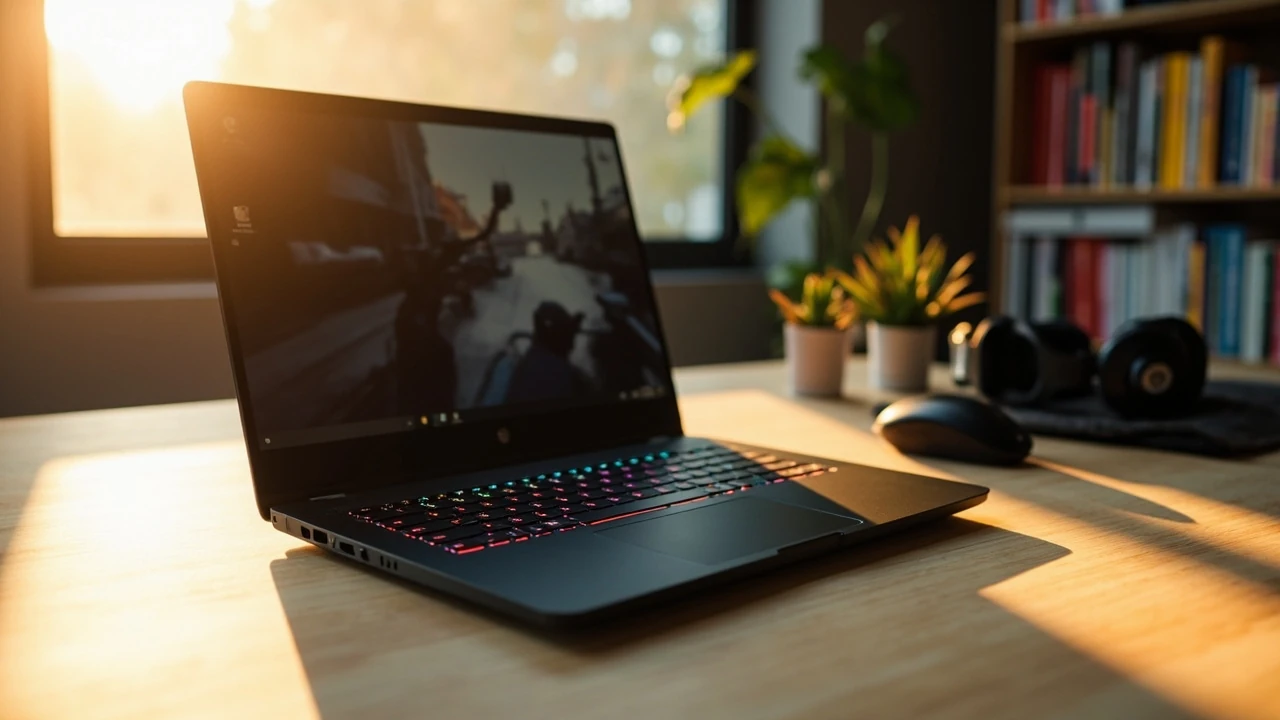
Choosing an MSI gaming laptop without overpaying or underspecing
Most buyers land on the MSI brand for a reason: the company has spent years building laptops that prioritise frame rate, display quality, and thermal headroom over thin-and-light compromises. The hard part is not finding an MSI gaming laptop to like; it is finding the one that actually matches the games you play, the room you sit in, and the budget you have set. Two laptops with the same GPU can still feel completely different once you account for display refresh rate, sustained power limits, and the size of the chassis.
This guide walks through how MSI segments its lineup, what each component does for real-world gaming, and the practical checks that separate a sensible purchase from a regret. The goal is not to crown a single winner, because the right choice depends on what you plug in, what you launch, and how long you expect to keep the machine.
How MSI segments its gaming laptops
MSI organises its gaming range by use case rather than by raw price. Understanding the segmentation makes it much easier to shortlist two or three models instead of scrolling through every configuration on offer.
The main product families at a glance
MSI uses a family name plus a two-digit code to indicate the tier and the screen size. The first digit is usually the screen size, and the suffix hints at the design intent.
- Raider / Vector: high-end performance, larger chassis, top-tier GPUs, higher sustained power limits.
- Stealth: thinner and lighter than Raider, still aimed at gaming but with a more portable footprint and longer battery life.
- Crosshair / Pulse: mid-range gaming, balanced specs and price, often the strongest value in the lineup.
- Sword / Katana: entry-level to mid-range, larger screens on a budget, suited to esports and casual AAA gaming.
- Cyborg / Thin: lower-cost shells with modern GPUs, designed to make current-generation gaming accessible.
- Titan: flagship desktop-replacement with the highest-spec GPU and CPU options and large cooling solutions.
Two models can share the same GPU but sit in different families, and the difference in sustained performance, noise, and chassis quality can be larger than the price gap suggests. Treat the family name as a signal of design priorities, not just a label.
What actually changes the gaming experience
Marketing pages tend to lead with the GPU name, but frame rate in real games depends on a stack of hardware working together. The list below explains where each component earns or loses its money.
GPU choice and total graphics power
The GPU is still the single biggest factor in frame rate at high or ultra settings. Within the same model name, however, MSI offers different “total graphics power” (TGP) tiers, which control how much wattage the GPU is allowed to draw. A higher TGP usually means a higher sustained frame rate and more stable 1% lows, at the cost of heat and fan noise.
When comparing two configurations of the same MSI gaming laptop, check the TGP number in the detailed spec sheet rather than the marketing name. A 140 W GPU and a 115 W GPU using the same chip can show a 10-20% gap in demanding AAA titles.
CPU, memory, and storage
Modern gaming leans on the CPU for draw call overhead, physics, and open-world streaming. A current-generation processor with strong single-core performance usually pairs well with any mid-range or high-end GPU. 16 GB of DDR5 memory is the practical minimum for current AAA games, while 32 GB is sensible if you also stream, record, or run mod-heavy titles. Storage is the easiest upgrade later, but check whether the laptop has two M.2 slots so you can add a second drive without replacing the original.
Display: panel type, resolution, and refresh rate
The display is the part you look at every session, and a poor panel makes even a powerful laptop feel slow. Three specifications matter:
- Resolution: 1920×1080 is the most common and easiest to drive at high frame rates. 2560×1440 looks sharper but needs a stronger GPU for the same target frame rate. 4K panels exist on flagship models and make sense mainly if you also use the laptop for photo or video work.
- Refresh rate: 144 Hz is a sensible minimum for fast games. 165 Hz and 240 Hz panels are common on mid-range and high-end models. High refresh rate only helps if your GPU can actually push enough frames to feed it.
- Panel technology: IPS is standard and offers good colour and viewing angles. OLED panels offer deeper blacks and stronger contrast, which is excellent for story-driven and atmospheric games, though long static UI elements in strategy or MMO games can pose a burn-in risk over many years.
Comparing the common use cases
Different players put weight on different things. The table below maps the most common priorities to the families and specs that fit them best.
| Player profile | Best fit family | GPU tier to target | Display to pick | Why this fits |
|---|---|---|---|---|
| Competitive esports (Valorant, CS2, Apex) | Crosshair, Sword, or thin Stealth | Mid-range current gen | 1080p, 144 Hz or higher IPS | High frame rate matters more than visual detail; thermals stay manageable in a thinner chassis. |
| AAA single-player at high settings | Raider, Vector, or Titan | High-end current gen with high TGP | 1440p, 165 Hz IPS or OLED | Stronger GPU plus better cooling sustains high settings with less thermal throttling. |
| Streaming and content creation | Raider or Stealth with 32 GB | High-end current gen | 1440p IPS with strong colour coverage | Extra memory and CPU headroom help with encoding while gaming. |
| Travel and university | Stealth or Thin | Mid-range current gen | 1080p or 1440p IPS at 144 Hz+ | Lighter chassis, longer battery life, and quiet operation under light load. |
| Entry-level casual | Cyborg, Katana, or Thin | Entry-level current gen | 1080p IPS at 144 Hz | Lowest price to reach playable frame rates in current games. |
Thermals, noise, and sustained performance
Spec sheets show the peak boost clock of a CPU or GPU, but a thin chassis cannot sustain those numbers for more than a few minutes. What you actually feel during a long session is the sustained performance after the cooling system reaches its limit.
Why chassis size matters
A larger chassis gives the cooling solution more surface area, more heat pipes, and often two or three fans instead of two. This means a 16-inch model from the Raider family will usually run cooler and quieter than a 14-inch Stealth with the same GPU, even if both use the same chip. If you play in a quiet room or stream with an open microphone, the larger chassis is often worth the extra weight.
Reading reviews before you buy
Independent reviews almost always include sustained frame rate tests and skin temperature measurements. When comparing two configurations, look for reviews that test the same game at the same settings for at least twenty minutes, then check how the frame rate settles. A 5% drop over twenty minutes is fine. A 20% drop means the cooling solution is undersized for the GPU inside.
Ports, keyboard, and the small details that matter daily
Once the headline specs look right, the day-to-day experience depends on the supporting hardware. These details are easy to overlook in a spec sheet but very visible in regular use.
- External display output: check whether the laptop has HDMI 2.1 and a USB-C port that supports DisplayPort alt mode. Some configurations route the dGPU directly to the external port, which is what you want for an external monitor.
- USB-C charging: lighter models often support USB-C charging, which is convenient for travel but usually caps out below the full power draw of the GPU under load. For long sessions at a desk, the bundled barrel-plug charger is still the safer option.
- Keyboard travel and layout: the keyboard on a 15-inch model often feels cramped compared to a 16-inch or 17-inch model. If you type a lot, look for reviews that comment on key travel rather than just RGB lighting.
- Webcam and microphones: built-in cameras have improved in recent years, but microphones still vary. If you stream or join a lot of calls, an external headset remains the clearest upgrade.
- Serviceability: confirm that the bottom panel can be removed with standard screws and that the RAM or SSD slots are accessible. A laptop that is easy to open today is a laptop that is easy to upgrade or repair two years from now.
Software, bloatware, and the MSI Center app
MSI ships a control panel called MSI Center (or a similar branded app) that handles performance profiles, fan curves, display colour settings, and firmware updates. It is genuinely useful once configured, but out of the box it can switch performance modes without warning, install background services, or push notifications about promotions. A short, one-time setup pass makes a real difference:
- Set the performance profile to a mode that matches your use case (for example, a balanced mode for everyday work and a high-performance mode for gaming).
- Disable any auto-update pop-ups and bundled promotional apps you do not plan to use.
- Calibrate the display to a sensible colour profile, especially if you do any photo or video work.
- Update the GPU driver directly from the GPU vendor’s control panel rather than relying on MSI Center to push updates, so you get new features on the day they ship.
This setup takes about fifteen minutes and turns a noisy, mode-switching machine into a quiet, predictable one.
How to compare two configurations head to head
When you are torn between two specific configurations, the differences usually come down to a small set of choices. The table below shows the kinds of trade-offs worth weighing.
| Decision | Option A | Option B | How to think about it |
|---|---|---|---|
| GPU power tier | Higher TGP, more heat and noise | Lower TGP, quieter and cooler | Pick the higher TGP if you play demanding AAA games; pick the lower TGP if you mainly play esports or work in quiet spaces. |
| Display resolution | 1080p, easier to drive at high frame rate | 1440p, sharper text and image | 1080p is the practical choice for competitive games; 1440p is worth the cost if you also use the laptop for creative work. |
| Memory size | 16 GB, fine for most games | 32 GB, comfortable for streaming and heavy mods | Choose 32 GB if you keep many browser tabs open, stream, or run large mod lists. Otherwise, 16 GB is still a sensible minimum. |
| Storage size | Single 1 TB drive, cheaper | Dual drive (1 TB + 1 TB), more flexible | Dual drives let you keep the OS separate from your game library, which makes reinstalls and upgrades easier later. |
| Chassis size | 15-inch, lighter and cheaper | 16-inch or 17-inch, better cooling | Larger chassis wins on sustained performance and keyboard comfort. Smaller chassis wins on portability. |
Accessories that change how the laptop feels
A few low-cost accessories can turn a good MSI gaming laptop into a much more comfortable daily driver.
- Laptop stand: a metal stand lifts the chassis off the desk and improves airflow through the bottom vents. Temperatures usually drop a few degrees under load.
- External keyboard and mouse: even a budget mechanical keyboard and a wired mouse feel better than a built-in keyboard over long sessions.
- Headset or headphones: laptop speakers are tuned for clarity, not bass. A proper headset reveals positional audio in competitive games.
- External monitor: if you sit at a desk most of the time, a 27-inch 1440p monitor at 144 Hz or higher is a meaningful upgrade for both games and everyday work.
None of these accessories are required, but each one improves the experience by an amount that is easy to notice within a week of regular use.
Common mistakes to avoid before you buy
Most regretful purchases come from a small set of patterns. Reviewing the list below takes a few minutes and saves money.
- Buying the GPU name, not the TGP: two laptops with the same GPU can perform very differently because of power limits. Always check the sustained wattage in the detailed spec sheet.
- Ignoring the keyboard layout: arrow keys, number pad, and the position of the function row vary a lot between 15-inch and 17-inch models.
- Skipping the port check: make sure the laptop has the ports you need now and at least one free port for future accessories.
- Underestimating weight and charger size: a 17-inch flagship with a 330 W power brick is not a casual travel laptop. Be honest about how often you will actually carry it.
- Forgetting warranty and service options: a longer warranty with on-site or carry-in service is worth more on a machine that is hard to open than on a model that is easy to repair at home.
Matching the laptop to a realistic budget
It helps to translate a budget into a target configuration rather than a single price tag. As a rough guide, current-generation mid-range GPUs pair well with 1080p high-refresh displays and 16 GB of memory in the lower to middle part of the price range. High-end GPUs make sense once you also want 1440p, 32 GB, or a larger chassis with stronger cooling. Flagship models add desktop-class performance at the cost of weight, noise, and price.
If the budget is tight, it is usually smarter to choose a lower-tier GPU with a strong chassis and a 1080p 144 Hz display than to stretch for a higher GPU in a thin shell that throttles within minutes. The latter looks better on paper and worse in practice.
What to check the day the laptop arrives
New hardware deserves a short first-day checklist. Running through it before installing games catches the small issues that are easy to fix and hard to remember later.
- Update the BIOS, chipset driver, and GPU driver from the vendor sites before installing any games.
- Run a stress test such as a built-in benchmark loop for fifteen minutes and watch the frame rate and the fan noise. The laptop should not thermal-throttle heavily in this short test.
- Check every port with a known-good cable or drive so that a loose connector is not blamed on a game later.
- Calibrate the display and set a sensible colour profile before judging the panel.
- Configure MSI Center or the equivalent control panel once and disable any noisy notifications.
Where this fits in your broader setup
For teams that treat the laptop as part of a wider product or service, the same hardware decisions show up in other contexts. If you also advise clients on website strategy or design visual identity systems, the habit of mapping a spec sheet to a real use case transfers well: list the user’s actual workload, rank the components by impact, and choose the configuration that serves the top of that list rather than the marketing headline.
Frequently asked questions
Which MSI gaming laptop series is best for AAA games?
The Raider, Vector, and Titan families are the strongest fits for demanding AAA games because their larger chassis allow higher sustained GPU power and better cooling. For most players, a mid-range configuration in the Raider line is the practical sweet spot, while the Titan makes sense when you want a desktop-class GPU and are happy to carry a heavier machine.
How much RAM do I need in an MSI gaming laptop?
16 GB of DDR5 memory is the practical minimum for current games, while 32 GB is a sensible upgrade if you keep many applications open, stream, or play heavily modded titles. 8 GB is now too tight for modern AAA games and is best avoided.
Is a 1440p display worth it on a gaming laptop?
A 1440p display is worth it if your GPU can sustain a comfortable frame rate at that resolution in the games you play. For competitive esports, 1080p is often the better choice because the GPU can push higher frame rates more easily. For story-driven and single-player games, the sharper image is a clear upgrade.
Do MSI gaming laptops run hot?
Most modern MSI gaming laptops run warm under heavy load but stay within safe limits thanks to multi-fan cooling systems. Temperatures in the high 70s to mid 80s Celsius for the CPU and GPU are common during long gaming sessions. Using a laptop stand and keeping the vents clear helps a lot.
How long does an MSI gaming laptop last?
With reasonable care, a well-spec’d MSI gaming laptop usually remains comfortable for four to six years of regular gaming. The parts that age first are the battery and the thermal paste, both of which are replaceable. Storage and memory are usually easy to upgrade, which extends the useful life of the machine.
Is the entry-level MSI gaming laptop good enough for beginners?
Yes. Entry-level configurations in the Cyborg, Katana, and Thin families are a sensible way to start, especially if you mainly play esports titles or older games. The trade-off is that demanding AAA games need lower settings to stay smooth.
Should I buy now or wait for the next generation?
That depends on the difference in price and how urgently you need the laptop. New generations usually bring modest gains in efficiency and frame rates rather than a step change, so a discounted current-generation model is often the better value. If a major launch is weeks away and your current machine still works, waiting can make sense.
Can an MSI gaming laptop be used for work and study?
Yes. Most MSI gaming laptops are simply well-built general-purpose machines with strong GPUs. Setting a quiet performance profile, lowering the RGB brightness, and switching to a balanced power plan make them comfortable for everyday work. The main trade-off is weight, since gaming laptops are heavier than typical ultrabooks.
What is the difference between Stealth and Raider?
Stealth models focus on a thinner and lighter chassis with longer battery life, while Raider models prioritise sustained gaming performance with larger cooling solutions. For a player who travels often or works in quiet spaces, the Stealth is the more comfortable choice. For a player who sits at a desk and wants the highest frame rates, the Raider is the stronger pick.
Are MSI gaming laptops easy to upgrade?
Most MSI gaming laptops use standard screws on the bottom panel and provide access to the M.2 storage slots and, in many models, the memory slots. A simple screwdriver and a careful hand are usually enough. Always power the laptop down fully and disconnect the charger before opening the chassis.