August 6, 2026 / Web Design
Gaming setup: a practical guide to building a balanced station
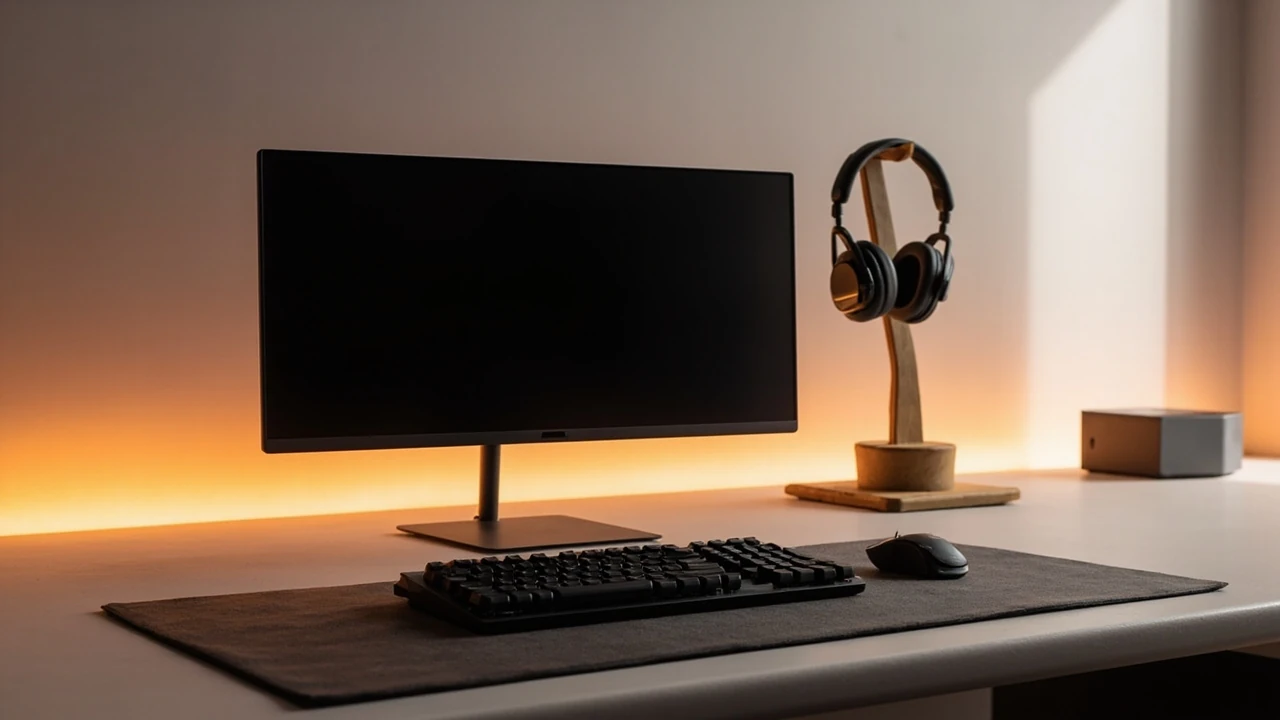
Most gaming setups fail in the same quiet way: they were bought piece by piece, on different days, and never quite agreed with each other. The chair does not match the desk height, the monitor sits too close, the cables tangle behind the tower, and a pair of speakers that sounded fine in the store now clashes with the room. The result is a station that looks fine in a photo but feels awkward after an hour of play or work.
A better approach treats a gaming setup as a single environment with a few jobs to do. The screen has to show motion clearly at the distance you actually sit. The chair and desk have to keep your shoulders, wrists, and eyes in neutral positions. The audio path has to deliver cues without leaking into the rest of the house. Every other choice, from RGB lighting to cable trays, supports those jobs. This guide walks through those decisions in a practical order, with the trade-offs that actually matter and the ones that rarely do.
What a gaming setup is really for
Before choosing parts, it helps to be honest about what the station will be asked to do. Three intents cover the majority of gaming setups that get built at home, and each one tilts the same hardware list in a different direction.
- Competitive play focuses on input lag, frame timing, and clear audio cues. The display, mouse, and headset do most of the work, and visual flair matters less than consistency.
- Immersive single player leans on screen size, contrast, and a wider soundstage. The chair and lighting matter more because sessions are longer and more cinematic.
- Shared or streaming use adds capture hardware, lighting for the camera, and a microphone path that does not pick up the keyboard or the room.
Most readers do not sit in only one of these buckets. Naming the primary intent keeps the budget pointed at the right components instead of spreading it evenly across a parts list.
The core of a balanced gaming setup
A core gaming setup is a small set of components that interact with each other, and the interactions matter as much as the specs. The table below summarises the role of each piece, the most common mistake made when choosing it, and the simple check that usually catches that mistake.
| Component | Primary job | Common mistake | Quick check |
|---|---|---|---|
| Display | Show motion clearly at your seated distance | Choosing diagonal size over pixel density | Sit at your normal distance and read small UI text without scaling |
| Chair | Keep pelvis and lower back in a neutral position | Picking by look or brand instead of seat depth and lumbar shape | Sit for ten minutes with feet flat and back against the lumbar curve |
| Desk | Set the right elbow and eye height | Choosing a flat top without checking leg clearance or depth | Rest forearms parallel to the floor with shoulders relaxed |
| Input devices | Translate intent into action with predictable feedback | Switching switches or sensors too often to chase small gains | Hold a steady line in a familiar game for five minutes |
| Audio path | Deliver cues without fatigue or leakage | Buying open-back headphones for a shared room | Ask someone in the next room what they can hear at normal volume |
| PC or console | Produce the frames and load the world on time | Spending on the GPU while the CPU bottlenecks the same game | Watch the CPU and GPU usage during your heaviest game |
The quick checks are not scientific, but they catch the issues that show up in day-to-day use far more often than benchmark charts do.
Choosing the display for your gaming setup
The display decides what every other component is allowed to do. A fast PC paired with a low-refresh monitor wastes the GPU, and a high-end monitor paired with a slow GPU wastes the monitor. Resolution, refresh rate, and panel type each pull the budget in a different direction, and the right balance depends on the distance between your eyes and the screen.
Resolution and pixel density
At a desk distance of roughly 60 to 80 cm, a 24 inch 1080p screen has a comfortable pixel density for fast games, while a 27 inch screen at the same resolution starts to look soft. Stepping up to 1440p gives clearer text and sharper edges at 27 inches, which helps when a single station is also used for work. 4K makes the most sense at 32 inches and above, or for simulation and strategy games where fine detail matters more than motion clarity.
Refresh rate and response
Refresh rate describes how many times per second the image can update, and response describes how quickly a pixel can change colour. For competitive shooters, a 144 Hz or higher panel with a low measured response time is the single most visible upgrade. For slower genres, 120 Hz is usually enough, and the extra budget is better spent on contrast or size.
Panel technology
IPS panels tend to offer better colour accuracy and viewing angles, VA panels give deeper contrast at the cost of some motion smearing, and OLED panels combine deep blacks with very fast response, at a higher price and with the usual care that goes with organic panels. If the gaming setup also runs as a workstation, IPS or OLED is the safer choice because text and design work need consistent colour.
Audio in a gaming setup
Audio is where a lot of gaming setups underperform, and the issue is rarely the headset itself. It is the room, the seal, and the level. A decent closed-back headset used at a reasonable volume will outperform a flagship open-back model driven hard in a noisy room. For a clearer picture of how frequency response and imaging affect gameplay, the headphones overview on Wikipedia is a useful starting point.
Headset, headphones, or speakers
Closed-back headphones keep sound contained and let you hear quiet cues in loud mixes. Open-back headphones sound more natural but leak into the room, which is a problem for shared spaces and for microphone capture. Speakers create a wider soundstage for immersive games but depend on room treatment, and they tend to wake the rest of the house. The honest choice is about room and household as much as sound.
Microphone placement
A separate microphone on a boom, set just off axis from the mouth and below chin level, picks up voice clearly while rejecting most keyboard noise. Headsets with built-in microphones are fine for casual play, but the mic capsule sits further from the mouth and tends to capture more of the room.
Ergonomics and the chair and desk pair
The chair and desk decide whether a gaming setup feels good after one match or after a whole evening. The goal is a neutral posture: feet flat, knees at roughly ninety degrees, hips slightly above the knees, elbows close to the body and bent near ninety degrees, and the top of the screen at or just below eye level. None of this is exotic, but the numbers change a lot from person to person, so the chair and desk usually need to be chosen together rather than in isolation.
| Body measurement | Chair setting | Desk setting |
|---|---|---|
| Height | Seat height lets feet rest flat with knees at about 90 degrees | Top of desk just below elbow height when seated |
| Torso length | Lumbar curve sits in the small of the back | Monitor top within 5 cm of seated eye level |
| Arm length | Armrests support elbows without lifting shoulders | Keyboard centred with mouse level to its right |
| Thigh length | Seat depth leaves about a fist of space behind the knees | Leg clearance under the desk of at least 60 cm |
If two of these settings fight each other, the desk is usually the easier thing to change. Sit-stand desks are a good middle ground, but only if the seated position is correct first. Standing all day with a screen that sits at seated eye level creates a different set of neck and shoulder issues.
Lighting and the room around the screen
Display performance is a property of the room as much as the panel. A bright window behind the screen washes out contrast and forces the brightness up, which in turn causes eye strain. A window in front of the screen casts reflections on glossy panels. The cleanest answer is to place the screen perpendicular to the window, with blinds or curtains that can soften daylight without leaving the room dark.
Bias lighting, a soft strip of light behind the monitor set to a warm white close to 4000K, reduces the contrast jump between the bright screen and the dark wall behind it. The aim is gentle illumination, not a coloured accent. Coloured RGB behind a screen looks attractive in photos but does not help the eyes, and it can confuse auto white balance on the webcam if the station is used for streaming.
Cable management and the small decisions that compound
Cable management rarely makes a marketing video, but it is one of the fastest ways to make a gaming setup feel finished. The job is not to hide every cable. It is to keep the cables that move, the mouse, the keyboard, the headset, on a clean path, and to anchor the cables that do not move so the desk does not slowly migrate across the room over a year of use.
- Mount a power strip to the underside of the desk and run a single cable to the wall.
- Use adhesive cable clips along the back edge of the desk to keep display and power cables in a single bundle.
- Route mouse and keyboard cables through a single grommet or tray so they cannot snag on the chair.
- Leave at least one empty socket on the power strip for the next device that will inevitably arrive.
- Label the power strip end with tape so the next person to move the desk knows which switch to flip.
These steps take less than an hour and they prevent the slow drift towards clutter that most gaming setups slide into within six months.
Network and latency in a gaming setup
For online play, the network often matters more than the GPU. A wired Ethernet connection to the PC or console removes a large class of problems that show up as spikes and packet loss on Wi-Fi. If a cable is not practical, a powerline adapter or a mesh system placed in line of sight to the gaming setup will usually outperform a router hidden in a cupboard on the other side of the house. The principle behind latency and how it differs from raw bandwidth is explained in more depth in the latency article on Wikipedia.
| Connection type | Typical use case | Failure mode to watch for |
|---|---|---|
| Wired Ethernet to PC or console | Primary online gaming and large downloads | Cable snagged by chair or foot traffic |
| Wi-Fi on a clear channel | Casual play, party games, or second device | Interference from microwaves, neighbours, or thick walls |
| Powerline adapter | Rooms without easy cable runs | Old wiring or circuits shared with heavy appliances |
| Mesh system in line of sight | Larger homes with multiple gaming setups | Nodes placed in cabinets or behind large metal objects |
Storage, thermals, and quiet operation
Storage and cooling are easy to undervalue because they do not show up in frame counters. A fast NVMe drive shortens load times and makes the system feel responsive when alt-tabbing, while a slower secondary drive handles bulk storage. Thermals decide whether the components can sustain their boost clocks or throttle under long sessions, and they also decide how loud the system is.
Quieter gaming setups are mostly the result of good airflow and slow-spinning fans, not exotic cooling parts. A case with a front mesh panel and two or three intake fans will usually run cooler and quieter than a closed panel with a single large fan, even with the same components inside. For a broader view of how case design affects noise, the computer cooling overview on Wikipedia covers the basic principles.
Budgeting a gaming setup in tiers
It is useful to think in tiers rather than in a single price target, because a small budget spent well often outperforms a larger budget spent impulsively. The table below gives a rough sense of where money goes in each tier, with the understanding that prices vary and the list is meant as a guide rather than a quote.
| Tier | Where the money goes | What to expect |
|---|---|---|
| Entry | Solid 1080p panel, dependable mid-range PC or current console, basic chair | Comfortable play at 1080p, 60 to 144 Hz depending on title |
| Mid range | 27 inch 1440p panel with high refresh, stronger GPU, adjustable chair, proper desk | Comfortable play at 1440p, with headroom for new releases for several years |
| Enthusiast | 32 inch 4K or ultrawide, top tier GPU, audio and microphone path, premium chair | High settings at high resolution, long sessions without fatigue |
Across all tiers, the chair, the desk, and the audio path are worth buying once. The GPU, the storage, and the display are worth upgrading over time. Holding this rule in mind keeps the next upgrade a small, targeted change rather than a full rebuild.
Layout, sightlines, and the rest of the room
A gaming setup is part of a room, and the room has opinions. The desk should not block the main entrance to the room, because a chair that swings towards a door invites collisions. The screen should not face a window or a mirror, because both will either wash out the image or reflect it back. Speakers, if used, should be placed in a rough triangle with the seat, and they should not press directly against a wall if a little breathing room is available.
- Leave at least 70 cm behind the chair for movement and for a visitor to pass by.
- Keep the desk at least 10 cm from the wall so cables can run behind it without pinching.
- Place the tower on the side of the desk with the strongest airflow path, usually away from the window.
- If the room is small, a wall-mounted monitor arm frees up desk depth and lets the screen sit at the right distance.
Common gaming setup mistakes and how to avoid them
The mistakes below show up in most gaming setups at some point. None of them are fatal, and they are all easier to fix at the planning stage than after the gear is mounted.
- Buying a GPU before checking CPU pairing. A mid-range CPU with a top tier GPU will bottleneck in many modern titles, and the inverse is just as common.
- Choosing a desk by looks alone. A flat, glossy top photograph well but flexes under a monitor arm and reflects light into the camera.
- Mounting the monitor too high. The top of the screen should sit near eye level, not above it, to avoid neck extension over long sessions.
- Skipping cable management on day one. It is much easier to route cables while the desk is empty than to add clips after everything is plugged in.
- Treating RGB as a feature. RGB lighting is a personal preference, not a performance feature, and it adds cost that could go into the chair, the desk, or the audio path.
Putting the gaming setup together in the right order
Order matters more than people expect. Building the environment first and the components second means the components can be placed correctly on day one.
- Measure the room and pick the desk position, including cable and chair space.
- Set up the desk and chair, then adjust the chair before anything else goes on the desk.
- Mount the monitor, set the height, and route the display cable down the back of the desk.
- Place the keyboard, mouse, and any audio gear, and route their cables through a single channel.
- Place the PC or console where airflow is strongest, and connect it to the network with a wired link if possible.
- Add lighting as bias light rather than accent light, and tune the room until reflections and glare are gone.
- Calibrate display brightness to the room, and set audio levels to a comfortable default.
This order is deliberately boring. It works because each step sets up the next, and the small annoyances that show up later in a gaming setup almost always trace back to a step that was skipped or done in the wrong sequence.
Where Made Visual Studio fits into a gaming setup
A gaming setup is also a designed environment. The same thinking that goes into a brand, a visual identity, or a website applies to the colours, lighting, and layout choices that make a station feel coherent rather than assembled. Two pieces of reading on this site are useful at this stage: Visual identity: what it is, what it includes, and how to build one covers the principles of pulling a small set of choices into a consistent look, and Website strategy: how to plan a site that actually performs is a useful parallel for anyone thinking of streaming or building a presence around a gaming setup.
Frequently asked questions
What is the single most important part of a gaming setup?
For most people, the chair and the desk pair matter more than any single component, because they decide whether long sessions feel comfortable. After that, the display tends to give the most visible improvement because the eyes use it for every second of play.
How much should I spend on a first gaming setup?
A reasonable mid-range target is to spend roughly the same on the chair and desk together as on the display, and to spend less on lighting and decoration than on the audio path. The exact split depends on how long the sessions usually are and whether the station is also used for work.
Do I need a 4K monitor for a good gaming setup?
Not necessarily. 4K is most useful at 32 inches and above, or for slow-paced genres where fine detail matters. For competitive games at a desk distance of around 60 to 80 cm, a 27 inch 1440p panel with a high refresh rate is often a better fit.
Are gaming chairs better than office chairs?
Not automatically. The label on the chair matters less than the fit, the lumbar support, and the adjustability. Many office chairs are better for long sessions than a gaming chair that only looks supportive in a product photo.
Is a wired network really necessary for online play?
Wired Ethernet removes a large class of Wi-Fi problems and is the most reliable option for a fixed gaming setup. A well-placed Wi-Fi access point can work for casual play, but for competitive titles a cable is the simpler answer.
How do I keep a gaming setup quiet?
Focus on airflow first, then on fan curves, then on component choice. A case with good intake and a sensible fan curve usually runs quieter than a closed case with a flagship cooler and aggressive fans.
Should lighting be warm or cool in a gaming setup?
Bias lighting behind the monitor works best as a warm white close to 4000K, because it matches typical indoor lighting and reduces the contrast between the screen and the wall. Coloured RGB is a personal choice, but it does not help the eyes.
How often should I upgrade a gaming setup?
The display, chair, and desk tend to last many years and are worth buying once. The GPU and storage benefit from upgrades every three to five years, while input devices and audio gear can last a decade if they still feel right.
Can a gaming setup double as a work setup?
Yes, and it usually should, because the same chair, desk, and display decisions apply. A 27 inch 1440p IPS panel, a quiet PC with a fast NVMe drive, and a good webcam and microphone cover both work and play without compromise.
What should I do before buying any gear?
Measure the room, mark the desk position on the floor with tape, and sit in the chair for a few minutes. That single habit catches most layout mistakes before they happen, and it gives a much clearer brief than any parts list.